Installing, Configuring and Administering infoRouter Content Search via Windows Search Service
'Windows Indexing Service' is not supported on Windows Server 2012 and later platforms. Microsoft replaced the content search system with "Windows Search". By default, on currently supported Windows platforms, infoRouter uses the "Windows Search" service in the background for its content search needs.
The other alternative might be "dtSearch" integration. Please request the documentation from support if interested. Normally, installing and enabling "Windows Search Service" on the server is enough before setting up infoRouter.
Some upgrades or migration processes may require manual configuration of the Windows Search Service. This documentation covers technical details and troubleshooting of some use cases.
Windows Search Service can index only local drives. If infoRouter warehouses reside on another machine, you will need to configure "Windows Search Service" manually using this document.
Installing and Configuring Windows Search on Windows Server (2012, 2016, 2019, 2022)
You can install Windows Search using the PowerShell command below (requires administrator mode):
Get-WindowsFeature -Name Search-Service | Install-WindowsFeature
After installing the Windows Search Service, open the Windows Services administration panel and find the "Windows Search" service.
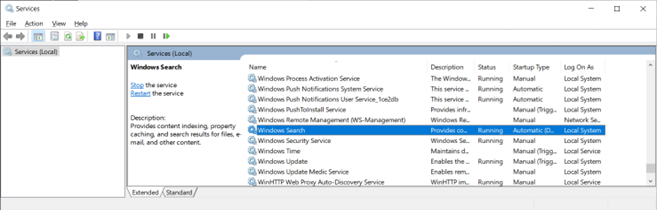
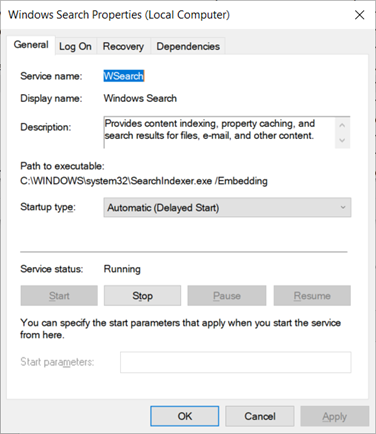
Make sure it is not disabled and its startup type is set to "Automatic". Ensure it is up and running.
InfoRouter Content Search Configuration to Use Windows Search
Web.Config
In infoRouter, in the configuration\appSettings section, the following
two lines tell infoRouter to use "Windows Search Service":
<add key="INDEXSRV" value="TRUE" />
<add key="INDEXCATALOG" value="SYSTEMINDEX" />
In this case, infoRouter assumes Windows Search is up and running and the document contents in infoRouter are indexed and cataloged on the local server.
Configuring the Windows Search Service to Index infoRouter Documents
Using the Windows search bar, type "Indexing Options" and open the found item.
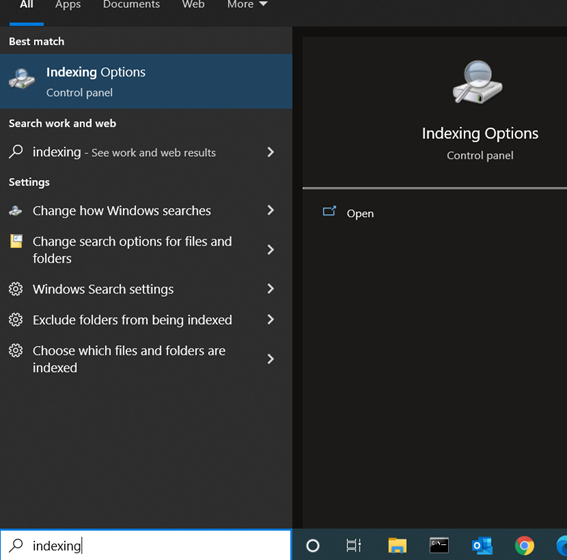
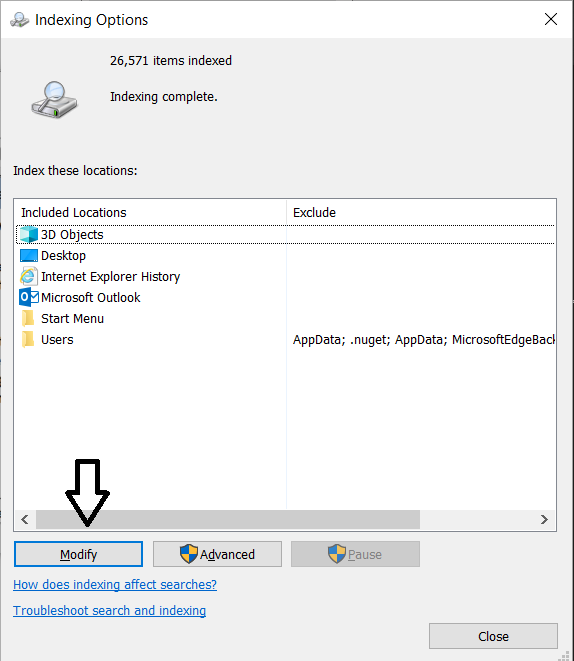
Using this panel, you can view and add applications or directories to be indexed by Windows Search. Click the "Modify" button to add infoRouter warehouse paths where infoRouter stores document contents on the file system.
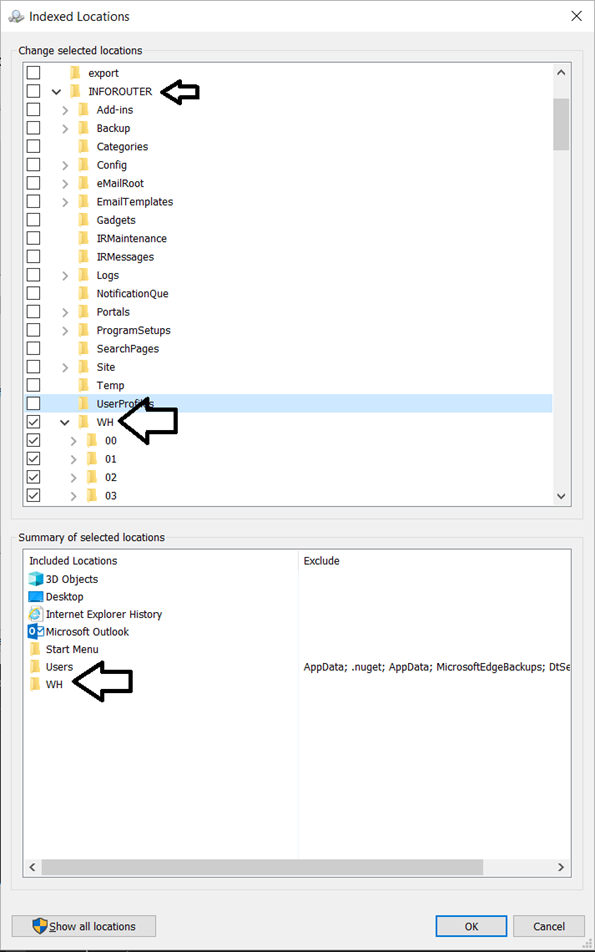
Using the "Indexed Locations" dialog, locate the infoRouter warehouse paths and choose the "WH" directory (including sub-items). Once chosen, it will be added to the summary section.
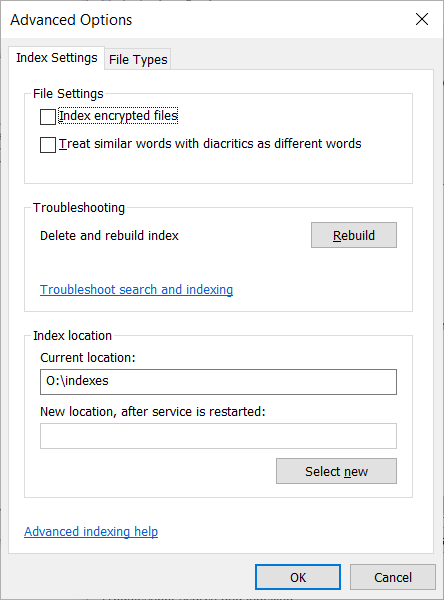
By clicking "Advanced Options" in "Indexing Options", you can rebuild the indexes or change the index catalog location.
MS Office iFilter, Adobe PDF iFilter
The Windows Search Service uses various text extraction software
called "iFilter" while indexing documents.
These are generally distributed and supported by document vendors.
For adding and including more document types in content searches, please visit:
Installing iFilters
Configuring infoRouter Using Remote Windows Search Services on Another Machine
If the infoRouter warehouses are located on another machine in the local area network, the Windows Search configuration is slightly different.
On the other machine that hosts the warehouses, install and configure the Windows Search Service as explained above. Then return to the server where the infoRouter application is installed.
Web.Config
In infoRouter, in the configuration\appSettings section, the IndexCatalog
value must include the server name that hosts the warehouses and runs the
Windows Search Service, in the form:
<add key="INDEXCATALOG" value="[WarehouseServerName]\SYSTEMINDEX" />
Example using "WHServer123" as the server name:
<add key="INDEXSRV" value="TRUE" />
<add key="INDEXCATALOG" value="WHServer123\SYSTEMINDEX" />
This configuration tells the infoRouter application to use the Windows Search Service remotely installed on the server "WHServer123".
Using remote Windows Search from another server has some logical requirements,
explained in the "Local and Remote Queries" section of the Microsoft article below:
Querying Process - Windows Search
These requirements mandate certain restrictions in the infoRouter web.config
and warehouse configuration.
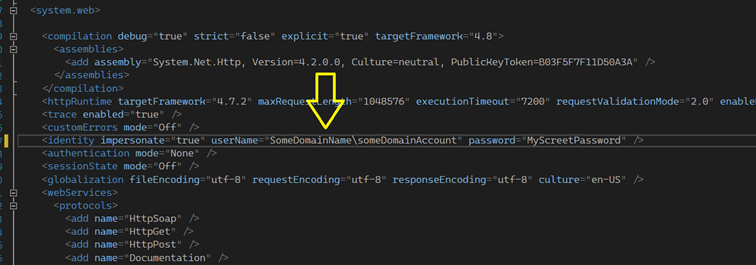
In the infoRouter web.config, an impersonated domain account must be defined
with network share access on the warehouse server.
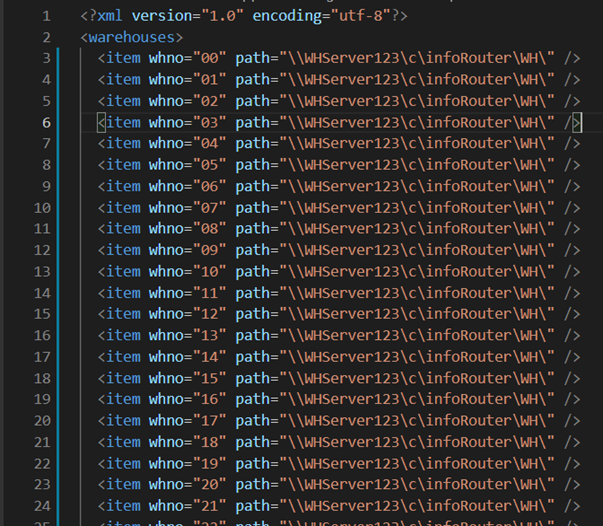
In the warehouse configuration (warehousepaths.xml), warehouse paths must be defined
in the form of UNC paths, as shown below.
When a user searches documents by content in infoRouter,
the application sends these paths to the remote search service as scope criteria
along with other criteria like search terms.
If these paths are mapped to drive letters on the infoRouter machine
(e.g., E: drive), the remote Windows Search Service cannot resolve these
paths from scope criteria and will return undescriptive errors,
such as "unspecified" or "get description" errors.